
Switch Between Schools
Teachers who work with multiple schools can access their classroom information through Benchmark Universe. This allows teachers to switch between schools and access the specific Benchmark Universe resources of those classrooms. Switching between schools gives teachers the ability to manage their responsibilities in different locations without having to maintain multiple logins and passwords.
Other than specific sections noted below, most areas of Benchmark Universe work the same whether you work at one school or more than one. For example, your Inbox and Assignments list shows one list representative of all schools.

|
For students in multiple schools, all areas of Benchmark Universe work the same as they do for students in a single school. Resources from their schools are automatically gathered together into their one login, so there's no need for students to switch schools. |
Switch Between Schools in My Library
Teachers who have access to multiple schools can switch between them using the My Library page. Different schools subscribe to different Benchmark Universe teaching programs. Please be aware that certain resources may appear in one school but be absent in another.
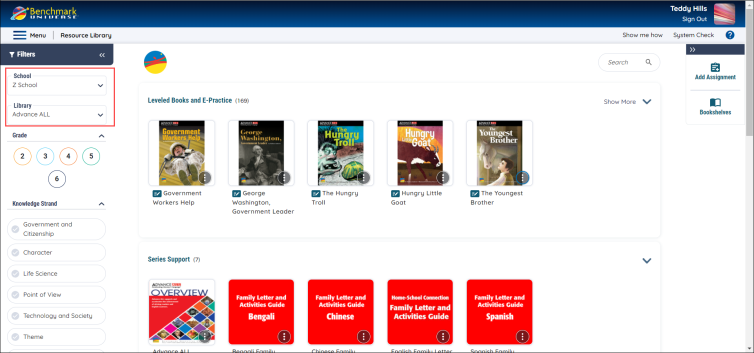
To switch between schools, use the School dropdown above Library dropdown on the right. Selecting a school changes the students, resources, and materials to those of that particular school.
Favorite and Set Default Schools
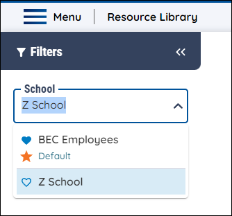
You can favorite a school by clicking the heart icon next to a school. Pressing the star icon under the heart icon allows you set a default school, meaning a specific school that you would see first whenever you log into the Resource Library. You can favorite as many schools as you like but can only set one default school.
Switch Between School in Manage Students
Teachers can also go between different schools while using the Manage Students screen.
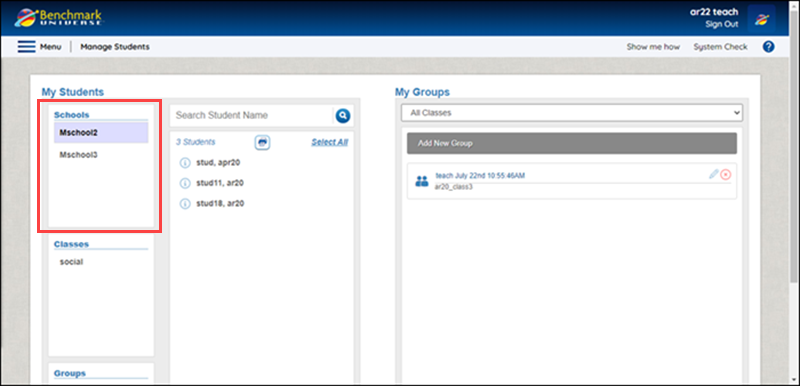
Learn more at View students in a class or group.
Switch Between Schools While Creating an Assignment
Teachers can also switch schools while creating an assignment by using the Add Materials page.
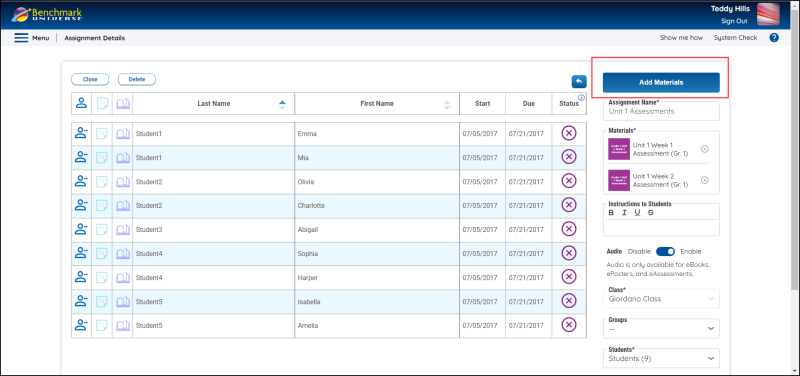
To switch between schools use the School dropdown above the Library dropdown on the right. To can also change schools while the Quick Assign menu in My Library.
To learn more about creating an assignment see Create an Assignment.
Switch Between Schools in Reports
Teachers can switch between schools in Benchmark Reports by using the School dropdown in the Roster tab in the Universal Selector.
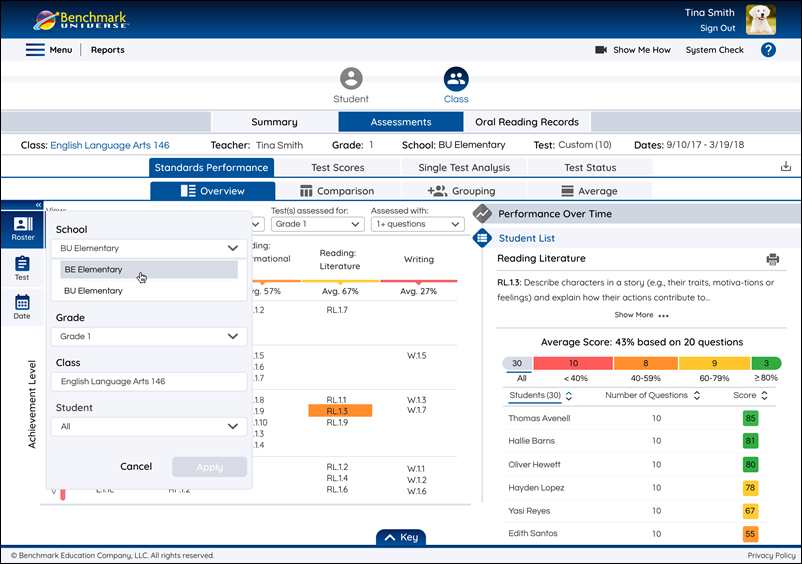
Learn more about the Universal Selector in Select Data to Include in Reports.
Last Updated: February 05, 2025