
Create or Modify a Plan
Creating a plan or modifying an existing plan is simple and intuitive in Benchmark Universe. Creating a plan helps users track the progress of their instruction each week, customize their lessons, and helps them focus and rethink their teaching approach. Teachers and administrators can also save their created plans for use throughout the school year.
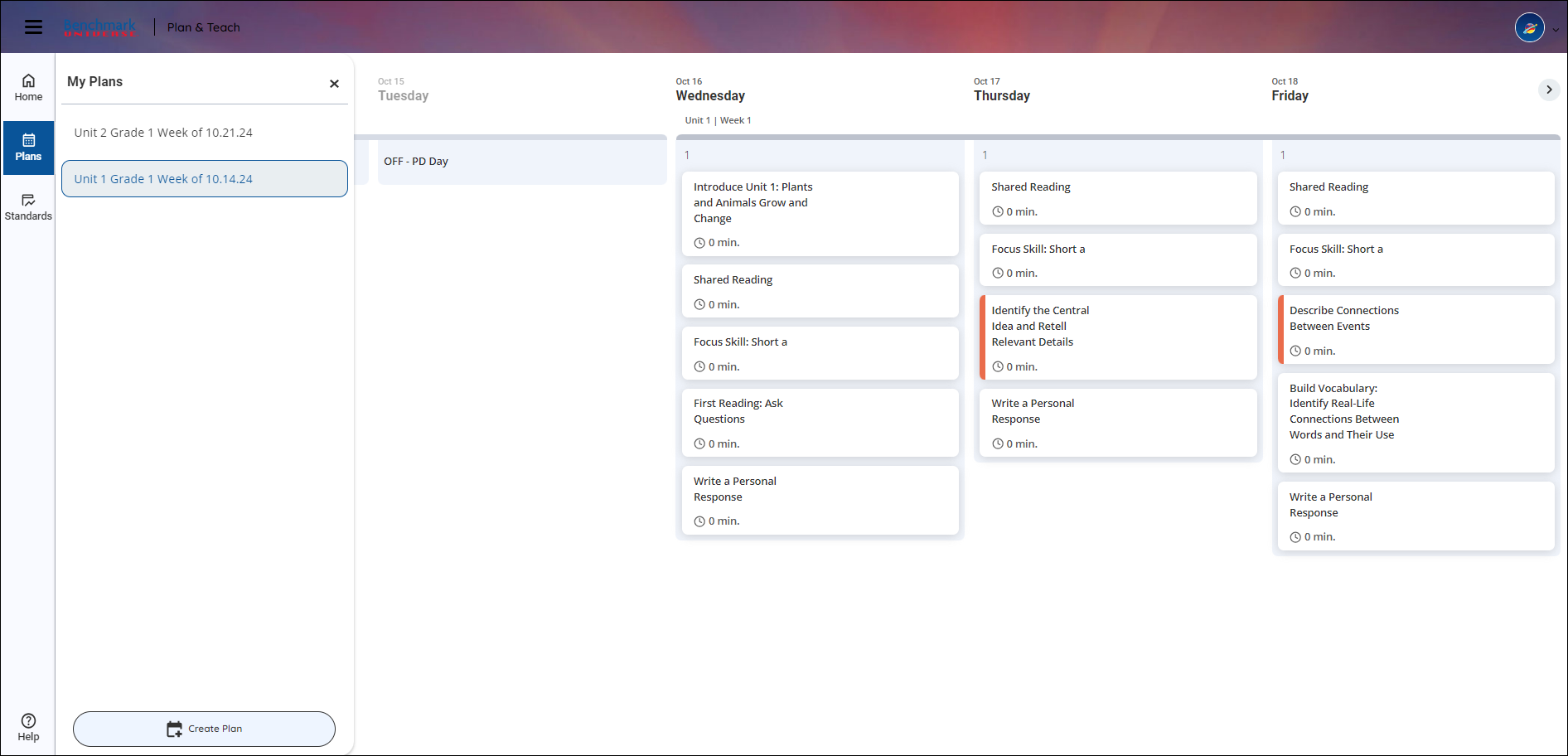
Click image to expand.
If you're looking for a particular section, use the links below to quickly move to that section:
Use the Weekly Calendar View to modify your plan
Create and Modify a Plan
Teachers and administrators can create a new teaching plan by following these steps:
- Select a program and grade
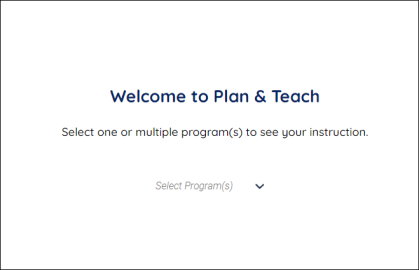
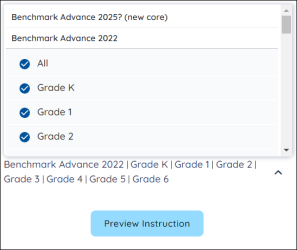
Use the dropdown to select one or multiple programs and then select one or multiple grade levels. Press Preview Instruction.
- Select Create Plan
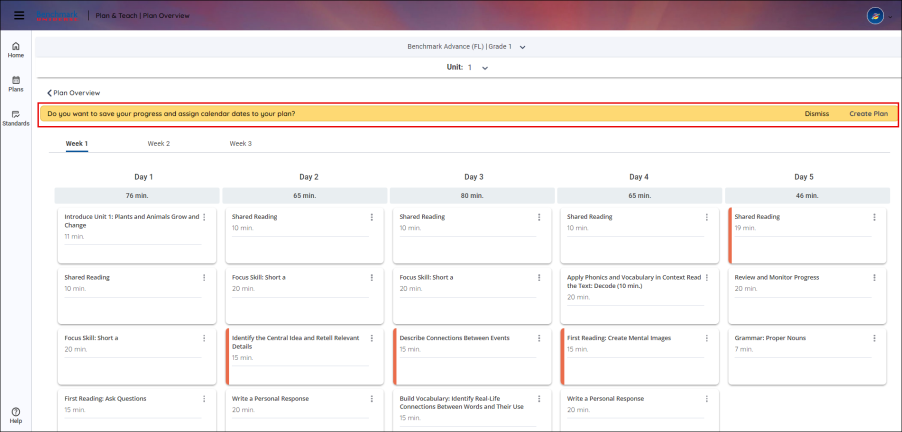 ]
]Once program(s) and grade level(s) have been chosen, users will see the Plan & Teach Plan Overview page. Select Create Plan from the banner.
- Use the Create Plan modal
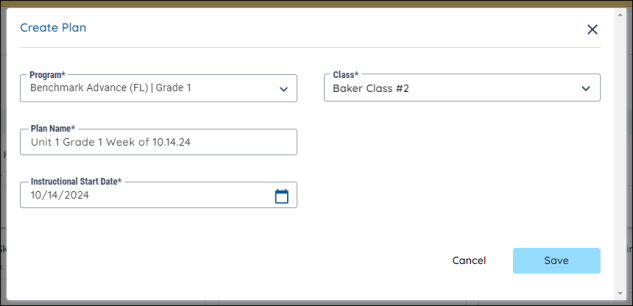
The Create Plan modal appears after selecting Create Plan from the banner. Users can change the program if needed, select a class for their plan, give their plan a name, and select the start date for instruction. Select Save to create the plan and view your first week.
- Use the Weekly Calendar View to modify your plan
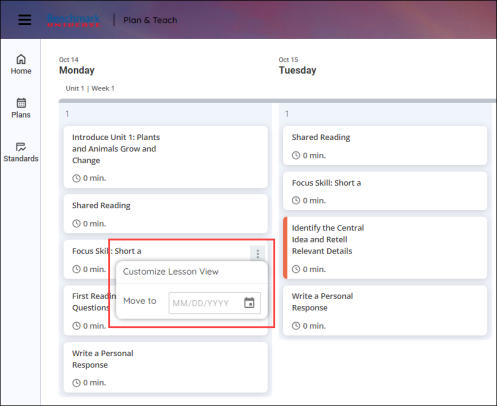
The Weekly Calendar View lets users move lessons to a different date by using the dropdown date menu that appears after pressing the three-dot button in a lesson icon. Users can also drag and drop a lesson from one day to another.
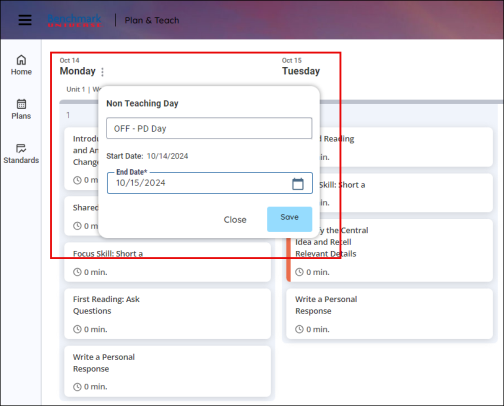
Hovering near the name of the day of the week also displays the three-dot button. Selecting the three-dot button displays a Non-Teaching Day pop-up. Users can label one or more consecutive days as a non-teaching day and select the day when instruction should begin again. By default, using the Non-Teaching day feature pushes instruction to the next available teaching day.
Navigate the Menu
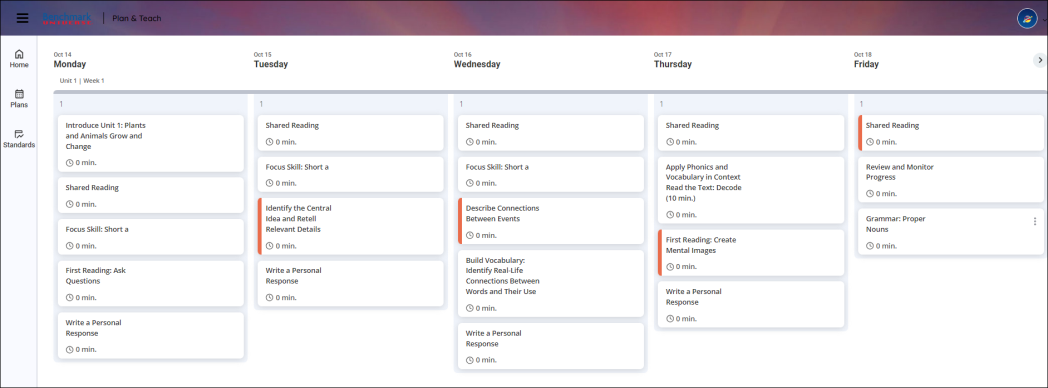
Users can view their plans and standards in the sidebar menu.

|
The access point for Standards reports is located in the sidebar. |
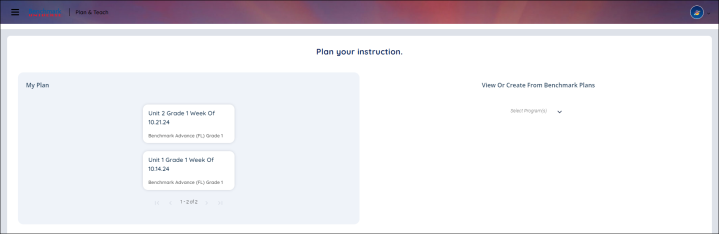
Pressing the Home button in the Menu allows users to see the plans that they have saved, or they can view or create a new plan.
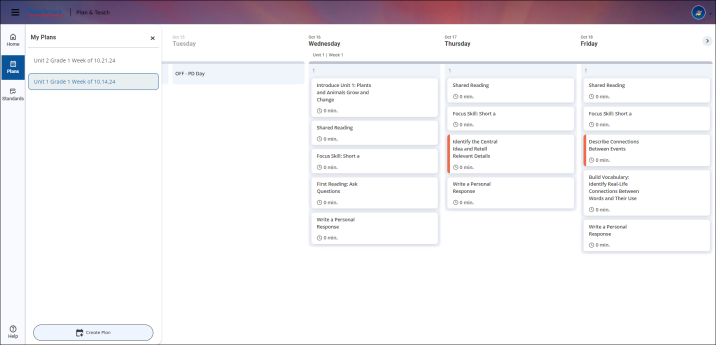
Pressing the Plans button in the Menu allows users to toggle between plans, or create a new one. Users can select from their previously-created plans in the My Plans section of the page.
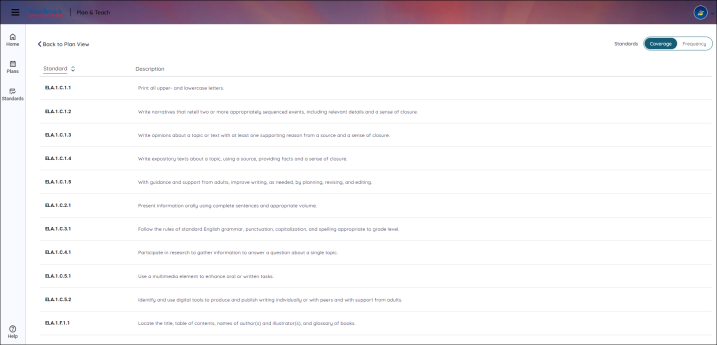
Pressing the Standards button in the Menu allows users to navigate to the Standards Reports within Plan & Teach for the selected Plan.