
You can create My Customizations files by using the Save as (Cloud with right arrow) icon. In addition, you can add new activities, rename or delete customization files you no longer need.

|
Before you start
The Activities panel has the following file types. |
| Type | Description |
| Original File |
A default file that comes with your subscription. Note: This file type can be customized by creating your own activities and saving it as a My Customizations file. |
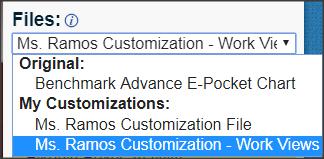
| My Customizations File | A My Customizations file is a collection of activities that you create and manage. The My Customizations files can be accessed from the ePocket Chart Customization list on the Library or from the Files drop-down list on the Activities panel. |
| Activities | Activities are a series of customized ePocket Chart work views that are saved as a single My Customizations file. See Add new and customize activities for more information. |
Create a new My Customizations file from an ePC original file
Use these instructions when you open an original ePocket Chart file.
- Open the ePocket Chart original file from the Library.
- Choose a work view.
|
|
See Choose your work view or Choose your Elkonin boxes work view for more information. |
- Click OK. The ePocket Chart opens with a default activity that appears with a time and date stamp in the Navigation bar and work view.
- Add new and customize your activities.
|
|
See Add new and customize activities for more information. |
- Click the Save as (Cloud with right arrow) icon when you are done.
- Type a name in the Name your new customization name box.
- Click Save. The My Customizations file appears in the Files drop-down list below the Files heading.
|
|
The Save (Cloud with up arrow) icon appears dim and is inactive when you create a new My Customizations file from an ePC original file. |
Create a new My Customizations file from an existing customization file
Use these instructions when you open an existing customization file from the Library.
- Open the ePocket Chart customization file from the Library. The ePC customization file opens with the first activity in the Navigation bar and work view.
- Add new and customize your activities.
|
|
See Add new and customize activities for more information. |
- Click Save as when you are done.
- Type a name in the Name your new customization name box.
- Click Save. The My Customizations file appears in the Files drop-down list below the Files heading.
|
|
When do I use the Save icon? The Save (Cloud with up arrow) icon becomes active when you are working with an existing customization file. Use the Save icon to save changes to an existing customization file. Only use the Save as icon when you want to create new My Customizations files. |
Create a new My Customizations file from an ePC with pre-made activities (For subscribers of ePocket Charts with pre-made activities only)
Use these instructions when you open an ePocket Chart file with pre-made activities.
- Open the ePocket Chart pre-made activities file from the Library. The ePC pre-made activities file opens with the first activity in the Navigation bar and work view.
- Add new and customize your activities.
|
|
See Add new and customize activities for more information. |
- Click Save as when you are done.
- Type a name in the Name your new customization name box.
- Click Save. The My Customizations file appears in the Files drop-down list below the Files heading.
Open a My Customizations file on the Activities panel
- Open the Activities panel.
- Click the Files drop-down list arrow.
- Select the My Customizations file you want to work with.
|
|
You can use the Info icon next to the Files heading for instructions to get you started. A dialog may appear if you did not save your changes to the existing customization file you are working on and attempt to open another My Customizations file. Select the appropriate option on the dialog to continue. |
Edit a My Customizations file name
Use the Pencil icon to rename your My Customizations file.
- Click the Pencil icon next to the My Customizations file name at the top of the Activities panel.
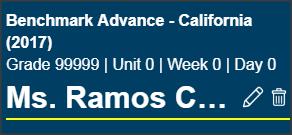
- Edit the My Customizations file name.
- Press Enter.
Delete a My Customizations file
Use the Trash icon next to the Pencil icon at the top of the Activities panel.
- Click the Trash icon. The Delete file dialog appears.
- Click Delete. A Free Workspace work view appears.
|
|
Ensure you have selected the correct My Customizations file before deleting. Deleted My Customizations files cannot be restored. A Free Workspace work view will appear when you delete a My Customizations file in order for you to continue creating and customizing your activities. |