
Access, Create, and Edit Teacher Assignments
Administrators can access assignments for a teacher’s class within their schools by navigating to the Assignments icon on their Dashboard or Menu.
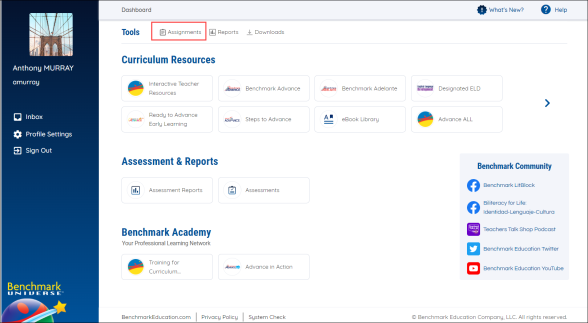
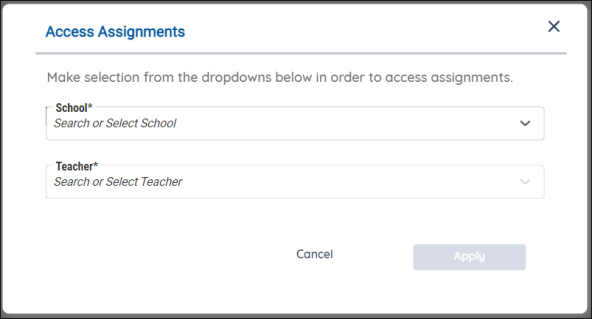
Once the Assignments icon is selected, a modal appears where Administrators can make school and teacher selections to access assignments.
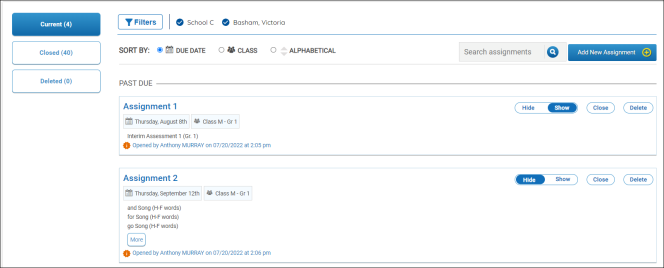
After Administrators make their selections and press the Apply button, they arrive at the selected teacher’s Assignment List page. From this page, Administrators can edit a teacher’s existing assignments or create new assignments for the teacher’s class as needed. (See About Assignments for help navigating the Assignments List or Create an Assignment for more information about how to create new assignments)
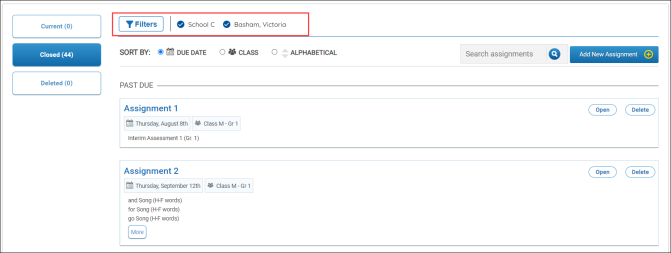
Administrators can change their school and teacher selections by using the Filters section at the top of the Assignment List page. Selecting either the Filters button, the school name, or the teacher name will call up the Access Assignments modal where Administrators can make new selections.
To learn more about editing assignments, see View and Edit Assignments.